
Bum Bum's toolbox
PNG to JPG Converter
Smaller files that open anywhere. Turn PNGs into JPGs right in your browser, at the quality you pick.
Pick some PNGs
🖼️
Drop PNG images here, or pick them below. Several at once works.
JPG
Want PNG or WebP out instead? The Image Converter runs every direction.
Higher keeps more detail. Lower makes a smaller file.
Questions, answered
Do I need an account?
No. Convert as a guest. It is free, with no limits. See pricing.
Do my images upload anywhere?
No. Your files never leave your device. Conversion happens right in your browser.
What happens to transparent parts of a PNG?
JPG has no transparency, so see-through areas come out white. If you need the transparency kept, convert to WebP with the Image Converter instead.
How much smaller will the JPG be?
Photos and screenshots usually shrink a lot, often to a tenth of the PNG size at the default quality. The slider trades size for detail: lower for a smaller file, higher to keep every edge crisp.
Can I convert a batch?
Yes, up to 20 images at a time.
Why does the text in my screenshot look smudged after converting?
JPG compression blurs sharp, high-contrast edges, and small text is nothing but sharp edges. For screenshots where the words matter, keep the PNG, or convert at 100% quality and accept the bigger file.
Does converting back and forth lose quality?
Yes. Every JPG save re-encodes the image and throws a little more away, and a JPG converted to PNG does not get the lost detail back. Keep the PNG as your master copy and convert fresh copies from it.
When should I not convert to JPG?
When you need transparency, when the image is headed for more editing, or when it is mostly text or line art that has to stay crisp. PNG is the better format for all three; JPG wins when the job is sending, uploading, or posting a photo or screenshot.
PNG to JPG, the short guide
Why make the switch
PNG keeps every pixel, which makes it the right format for editing and the wrong size for sending. A screenshot that weighs 4 MB as a PNG often lands under 400 KB as a JPG, small enough for email, upload forms with size caps, and marketplace listings that reject big files. JPG also opens in every app and form on the internet, including the older ones that still refuse newer formats.
A real conversion, with real numbers
Here is an actual photo run through this exact converter: Bum Bum himself, a 1081 × 1455 photo saved as a PNG. Same picture three ways:
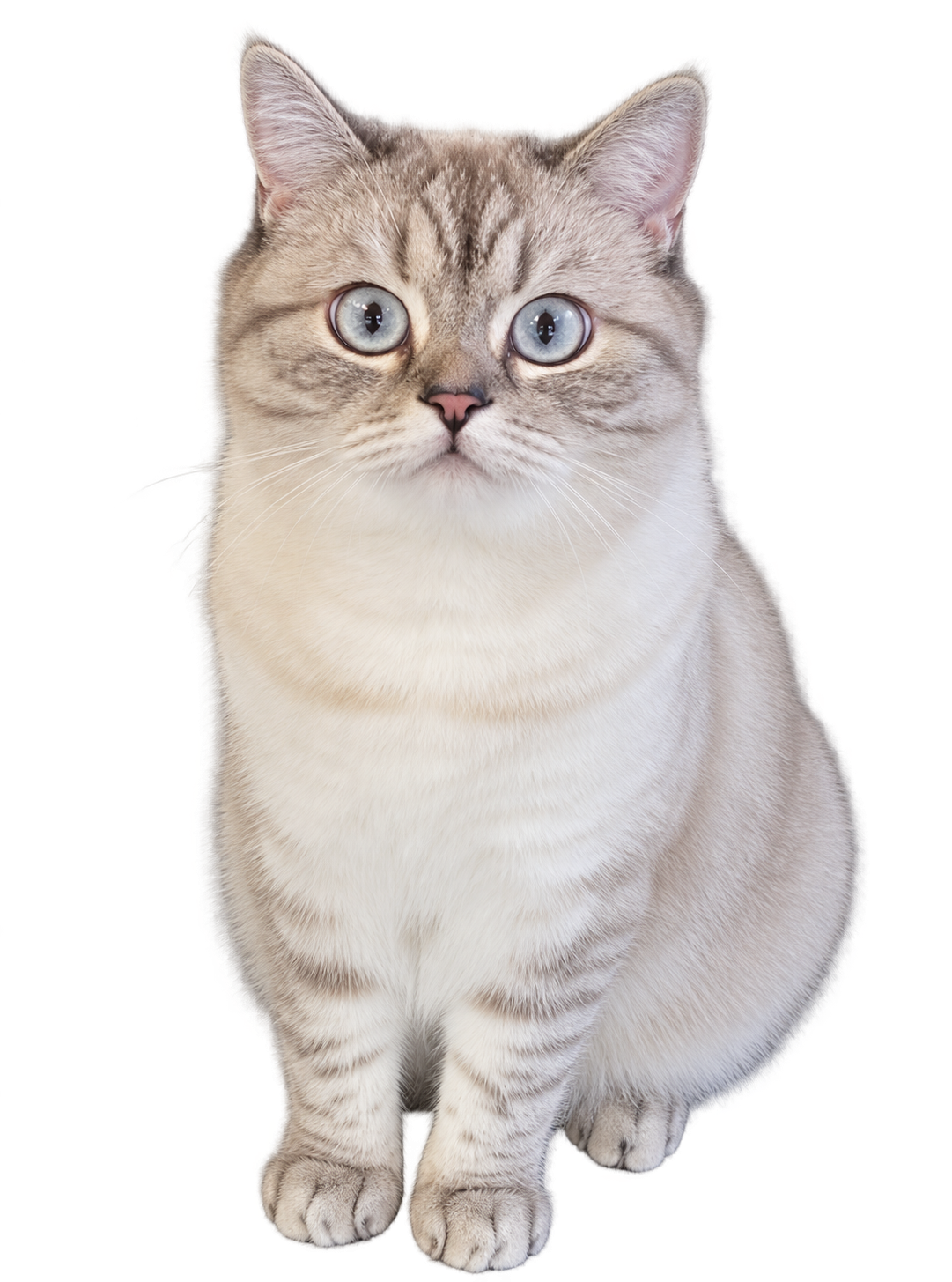
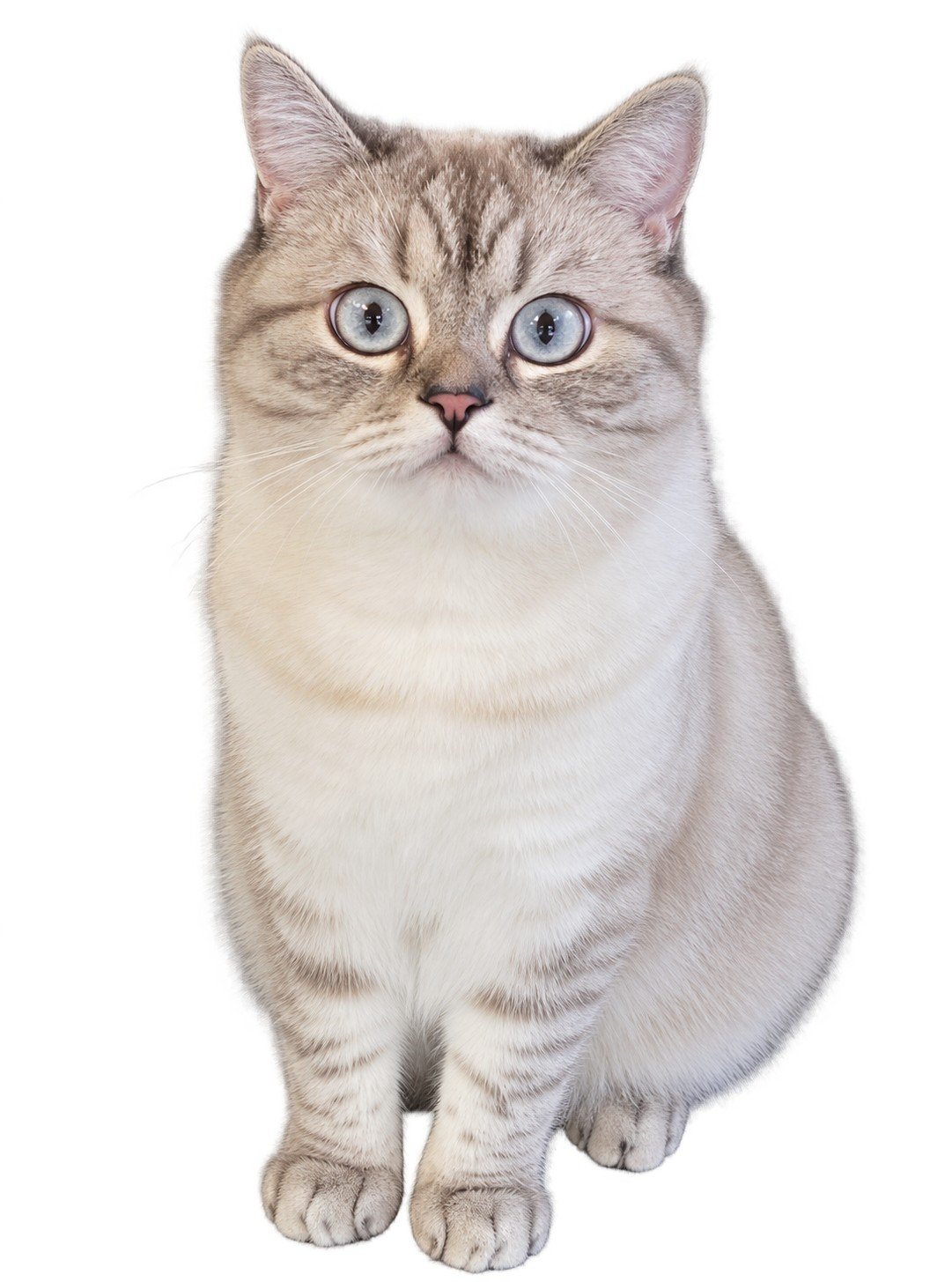
| Version | File size | Smaller by |
|---|---|---|
| PNG original | 1.7 MB | — |
| JPG at 90% quality | 207 KB | 88% |
| JPG at 70% quality | 112 KB | 93% |
Two things worth noticing. The see-through background of the PNG comes out white in the JPG, because JPG has no transparency; that is covered below. And the JPG at 90% is hard to tell from the original at normal viewing size, which is why 90% is the default here.
PNG vs JPG, side by side
| PNG | JPG | |
|---|---|---|
| File size | Large; every pixel kept | Small; detail thrown away cleverly |
| Transparency | Yes | No; see-through areas turn white |
| Quality loss | None, ever | A little on every save |
| Best for | Editing, screenshots with small text, logos, line art | Photos, sending, uploading, posting |
| Opens in | Almost everything | Everything, including old forms and apps |
Picking a quality
The default 90% suits photos and screenshots: visibly the same picture, a fraction of the size. Drop toward 70% when the file only needs to be looked at once, like a quick proof for a client. Push toward 100% for images headed to print or further editing, and accept the bigger file.
How to convert PNG to JPG on Windows, Mac, and iPhone
The converter above is the fast route, but every computer and phone can also do this with the apps already on it:
Windows (Paint): right-click the PNG and choose Open with, then Paint. Go to File, then Save as, then JPEG picture. Pick a folder and save; Paint writes a JPG copy and leaves your PNG alone.
Mac (Preview): open the PNG in Preview. Go to File, then Export. Set the format to JPEG, move the quality slider toward Best for photos, and save.
iPhone (Files): save the PNG to the Files app, touch and hold it, tap Quick Actions, then Convert Image. Choose JPEG and the image size, and the converted copy lands in the same folder.
One warning that saves real grief: renaming a file from photo.png to photo.jpg does not convert anything. The picture inside is still PNG data wearing a JPG name tag, and some apps will refuse to open it. A real conversion re-encodes the image, which is what the apps above and the converter on this page do.
One thing to know before you convert
Transparency does not survive the trip. A logo or sticker with see-through areas gets a white background in JPG, which is usually what an upload form wants anyway. Keep the PNG around if you still need the transparent version for design work.